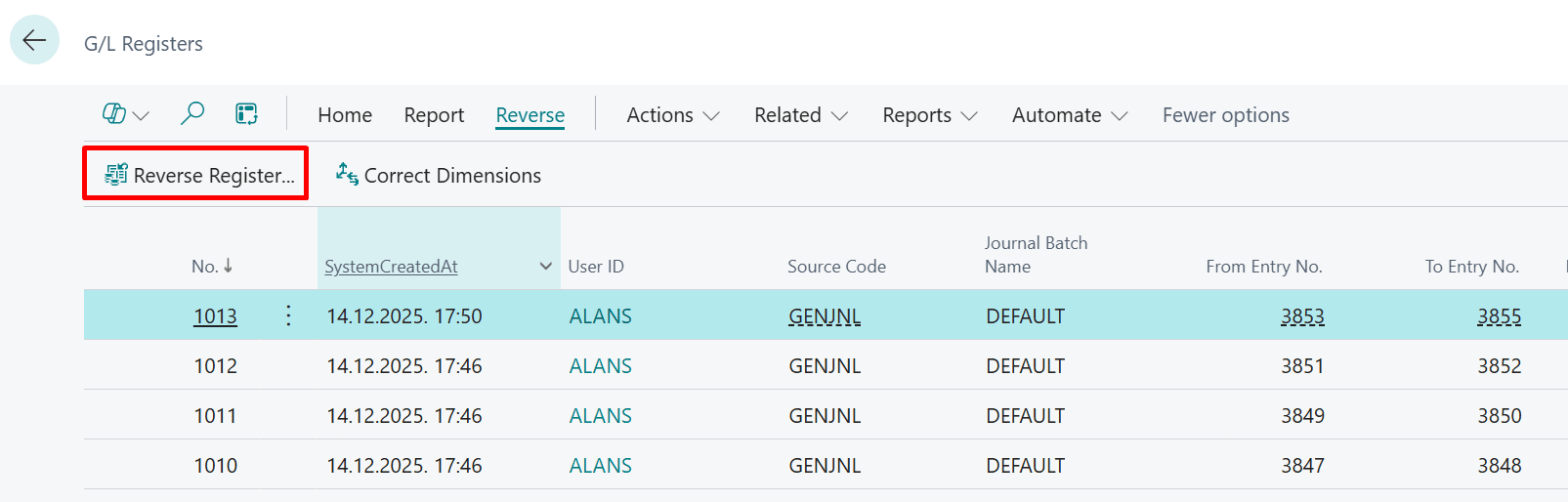
As a developer who somehow ended up writing a financial blog post, I’ve discovered something hilarious: reversing General Ledger (G/L) transactions in Business Central is like hitting Ctrl+Z for developers… only with extra paperwork.
Instead of magically undoing mistakes, Business Central makes sure every reversal is properly tracked with balancing entries and correction flags. It’s undo with an audit trail — because accountants don’t trust magic, they trust more entries.
In this post, I’ll walk you through three main ways to reverse G/L transactions:
- Using the G/L Register to reverse an entire batch.
- Creating a new journal line with a correction flag.
- Reversing directly from the General Ledger Entries page.
1. Reversing via G/L Register 🪓
This method is the “big red button” approach—reverse everything in a posted batch at once.
Steps:
- Navigate to the G/L Registers page.
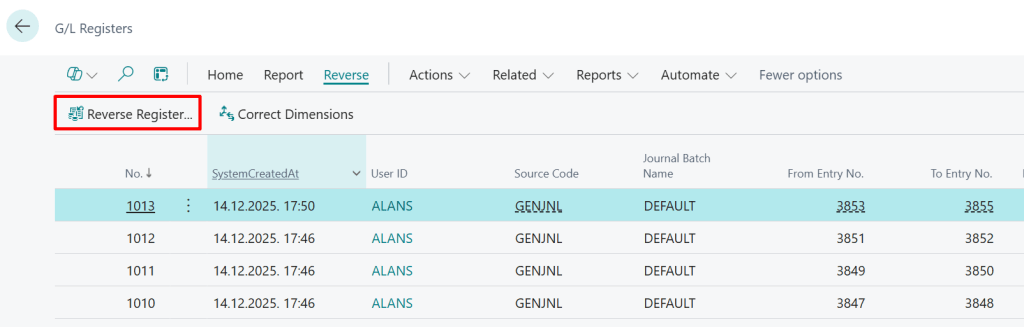
- Find and select the register you want to reverse.
- Click Reverse in the action bar, then select Reverse Register.
- Confirm the reversal. Business Central will automatically create balancing entries for all the original entries.
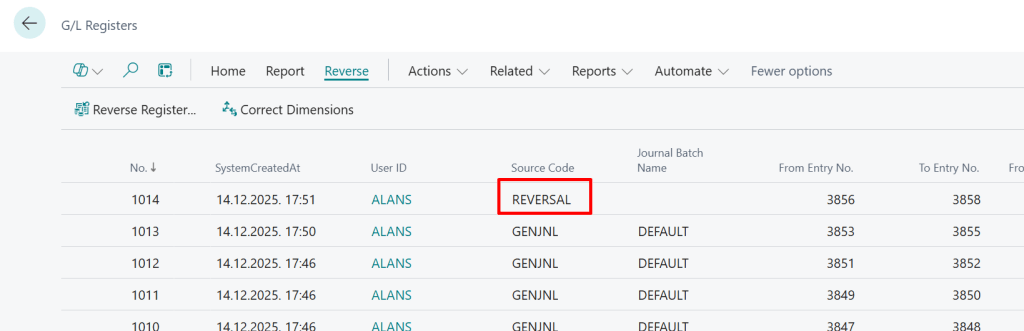
- You’ll see a new line in the G/L Registers page with the Source Code marked as REVERSAL.
Key Points:
- Only registers created from posting journals can be reversed this way.
- Registers from other modules (like sales or purchasing) are off-limits.
- The reversal posts on the original posting date of the entries.
👉 Think of this as “nuclear undo”—quick, powerful, but not always subtle.
2. Entering a New Journal Line with Correction Flag ✍️
This method is more precise—you can reverse specific lines instead of the whole batch.
Steps:
- Open the Posted General Journal page.
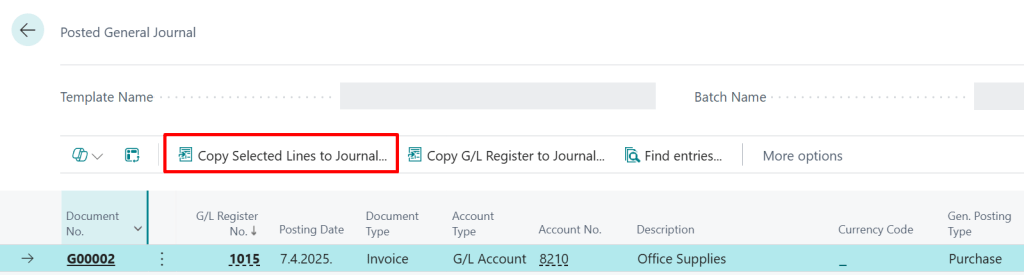
- Locate the entry you want to reverse.
- Select the lines and choose Copy Selected Lines to General Journal.
- In the new journal, set the Correction flag to indicate reversal.
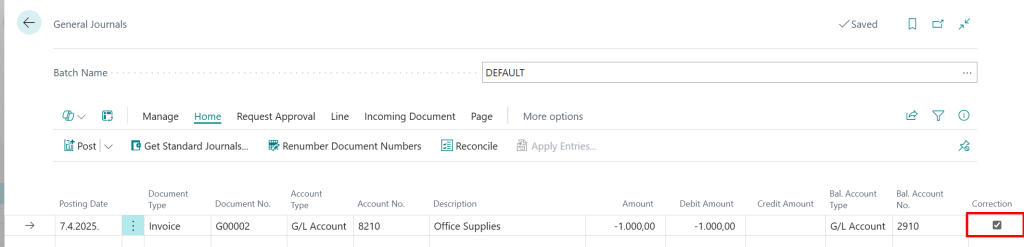
- Adjust the posting date if needed, and flip the sign (debit becomes credit, credit becomes debit).
- Post the new journal entry.
Key Points:
- Allows granular control—you choose which lines to reverse.
- Maintains the audit trail by posting correcting entries instead of deleting originals.
👉 Think of this as “surgical undo”—precise, controlled, and accountant-approved.
Note: The Posted General Journal is only populated if the “Copy to Posted Jnl. Lines” option is enabled on the G/L Journal Batch—otherwise the entries won’t be copied there (and you won’t be able to copy them back to a new journal).
3. Reversing from General Ledger Entries 🔄
This option is very similar to reversing via the G/L Register, but instead of working at the batch level, you can reverse directly from the General Ledger Entries page.
Steps:
- Navigate to the General Ledger Entries page.
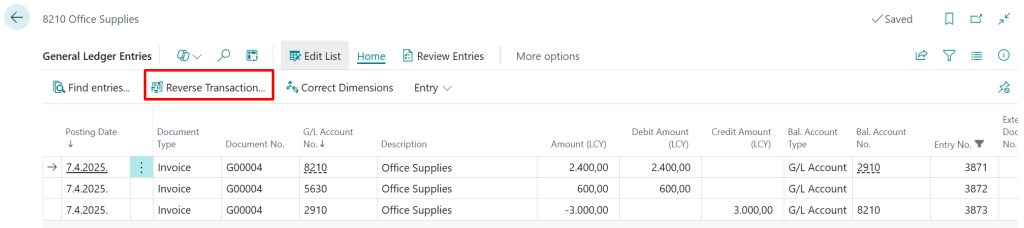
- Find the transaction you want to reverse.
- Select the entry and choose Reverse Transaction from the action bar.
- Confirm the reversal. Business Central will create balancing entries, just like with the register reversal.
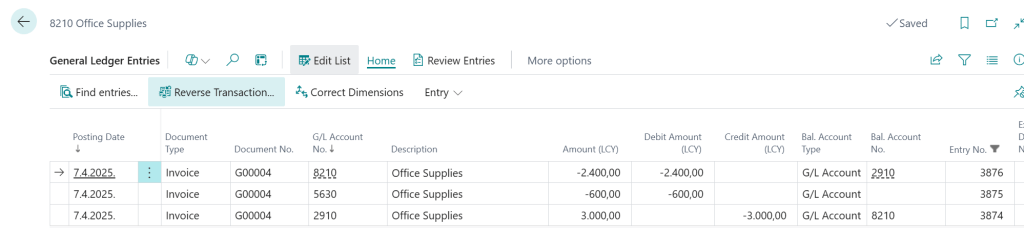
Key Points:
- Works almost the same way as reversing registers, but at the individual transaction level.
- Useful when you want to reverse a specific transaction without dealing with the entire batch.
- The reversal is posted on the original posting date, maintaining consistency.
👉 Think of this as “targeted undo”—similar power to register reversal, but scoped to a single transaction.
Which Method Should You Use?
- Batch reversal (G/L Register): Best when you need to undo an entire posting journal.
- Correction flag: Best when you only need to fix specific entries.
- G/L Entries reversal: Best when you want to reverse a single transaction quickly, without touching the whole batch.
Closing Note
So there you have it: three ways to undo financial mistakes in Business Central. Whether you’re smashing the “reverse everything” button, carefully crafting a correction entry, or targeting a single transaction, remember — developers may dream of Ctrl+Z, but accountants dream of paperwork.
 Miljan's Blog